Chapter 9 Working in Bash
9.1 Introduction
Unix is simply a computer operating operating system.
Bash, on the other hand, is a shell. Shells are command line interfaces where where you can communcate with the computer via certain commands. Lets explore some commands. Feel free to test these on your machine in a terminal.
9.1.1 Basic Commands
9.1.1.1 pwd
The command 'pwd' will display the current working directory. Directories are file systems that contain references to other durectories and files.
9.1.1.2 ls
In order to view the files contained within the directory, we can use the command 'ls'. This will list the files and sub-directories in the current worrking directory
9.1.1.3 cd
'cd' stands for change directory and will change the working directory to a specified directory using a file path. By just entering cd, you will directed to your home directory
9.1.1.4 mkdir
With the 'mkdir' command, a new directory will be created with the name we provide within the current working directory.
9.1.1.5 touch and nano
The 'touch' command will create a new file within the current working directory.
Heres and example
pwd
mkdir Example
cd Example/
pwd
touch exampleTextFile.txt
ls
## /home/runner/work/wearables-book/wearables-book
## /home/runner/work/wearables-book/wearables-book/Example
## exampleTextFile.txtFor more basic bash commands, refer to https://www.educative.io/blog/bash-shell-command-cheat-sheet!
9.2 Working with Data using Bash
Bash is very powerful when working with data. Let's explore an example of some data analysis using bash commands.
First, we will retrieve some data using the 'wget' command. This command will dowload data from a URL and save it to the current durectory.
| For Mac users: |
| If the wget command returns the error 'wget: command not found', then run |
| ruby -e "$(curl -fsSL https://raw.githubusercontent.com/Homebrew/install/master/install)" |
| followed by |
| brew install wget |
| This process installs Homebrew, which is a package manager for missing packages on macOS. |
wget https://raw.githubusercontent.com/fivethirtyeight/data/master/us-weather-history/KNYC.csv## --2020-07-28 17:27:06-- https://raw.githubusercontent.com/fivethirtyeight/data/master/us-weather-history/KNYC.csv
## Resolving raw.githubusercontent.com (raw.githubusercontent.com)... 151.101.208.133
## Connecting to raw.githubusercontent.com (raw.githubusercontent.com)|151.101.208.133|:443... connected.
## HTTP request sent, awaiting response... 200 OK
## Length: 20604 (20K) [text/plain]
## Saving to: ‘KNYC.csv.4’
##
## 0K .......... .......... 100% 1.84M=0.01s
##
## 2020-07-28 17:27:06 (1.84 MB/s) - ‘KNYC.csv.4’ saved [20604/20604]Now, we can view the first n rows of the data. In this example, we will view the first five lines
head -n5 KNYC.csv## date,actual_mean_temp,actual_min_temp,actual_max_temp,average_min_temp,average_max_temp,record_min_temp,record_max_temp,record_min_temp_year,record_max_temp_year,actual_precipitation,average_precipitation,record_precipitation
## 2014-7-1,81,72,89,68,83,52,100,1943,1901,0.00,0.12,2.17
## 2014-7-2,82,72,91,68,83,56,100,2001,1966,0.96,0.13,1.79
## 2014-7-3,78,69,87,68,83,54,103,1933,1966,1.78,0.12,2.80
## 2014-7-4,70,65,74,68,84,55,102,1986,1949,0.14,0.13,1.76Another helpful way to view data is to save subsets of data to seperate files.
Here we save the first 10 lines to a new file called short.csv.
head -n10 KNYC.csv >short.csvNow we can view the whole file using the 'cat' command.
cat short.csv## date,actual_mean_temp,actual_min_temp,actual_max_temp,average_min_temp,average_max_temp,record_min_temp,record_max_temp,record_min_temp_year,record_max_temp_year,actual_precipitation,average_precipitation,record_precipitation
## 2014-7-1,81,72,89,68,83,52,100,1943,1901,0.00,0.12,2.17
## 2014-7-2,82,72,91,68,83,56,100,2001,1966,0.96,0.13,1.79
## 2014-7-3,78,69,87,68,83,54,103,1933,1966,1.78,0.12,2.80
## 2014-7-4,70,65,74,68,84,55,102,1986,1949,0.14,0.13,1.76
## 2014-7-5,72,63,81,68,84,53,101,1979,1999,0.00,0.12,3.07
## 2014-7-6,75,66,84,68,84,54,103,1979,2010,0.00,0.13,1.97
## 2014-7-7,81,72,90,68,84,56,100,1914,2010,0.04,0.13,3.13
## 2014-7-8,81,71,91,69,84,56,100,1894,1993,0.39,0.14,1.80
## 2014-7-9,80,71,88,69,84,54,106,1963,1936,0.09,0.14,1.09We can also view specifc columns from our data using 'cut'.
cut -d, -f1,4 short.csv## date,actual_max_temp
## 2014-7-1,89
## 2014-7-2,91
## 2014-7-3,87
## 2014-7-4,74
## 2014-7-5,81
## 2014-7-6,84
## 2014-7-7,90
## 2014-7-8,91
## 2014-7-9,88Next, lets look at a specific row by using the 'grep' command to search by date.
grep 2015-2-23 KNYC.csv## 2015-2-23,23,8,38,30,43,5,70,1889,1985,0.00,0.12,1.389.3 Bash Scripts
Now that we have covered some of the basics of bash, let's explore a powerful tool within bash called bash scripting. Writing bash srcipts is similar to any other program where each new line is a command with an intent to build upon previous computations.
We can create files that will perform the tasks within. Consider this:
If we want to write some bash commands that will write the time of day to a file we can do something like
touch myDateFile.txt
date >>myDateFile.txt
running these commands each time we would like to write the date to the .txt file would begin to be tedius after time. Bash scripts provide an easy solution!
First, we will create a new .sh file.
touch myDateBash.shThen, using a text editor, we can edit the file and enter our code to write the date to myDateFile.txt.
Paste the following command into a terminal (be sure your working directory is the same directory as where you saved your bash file):
vi myDateBash.sh
You will be presented with a screen that looks like the following image.
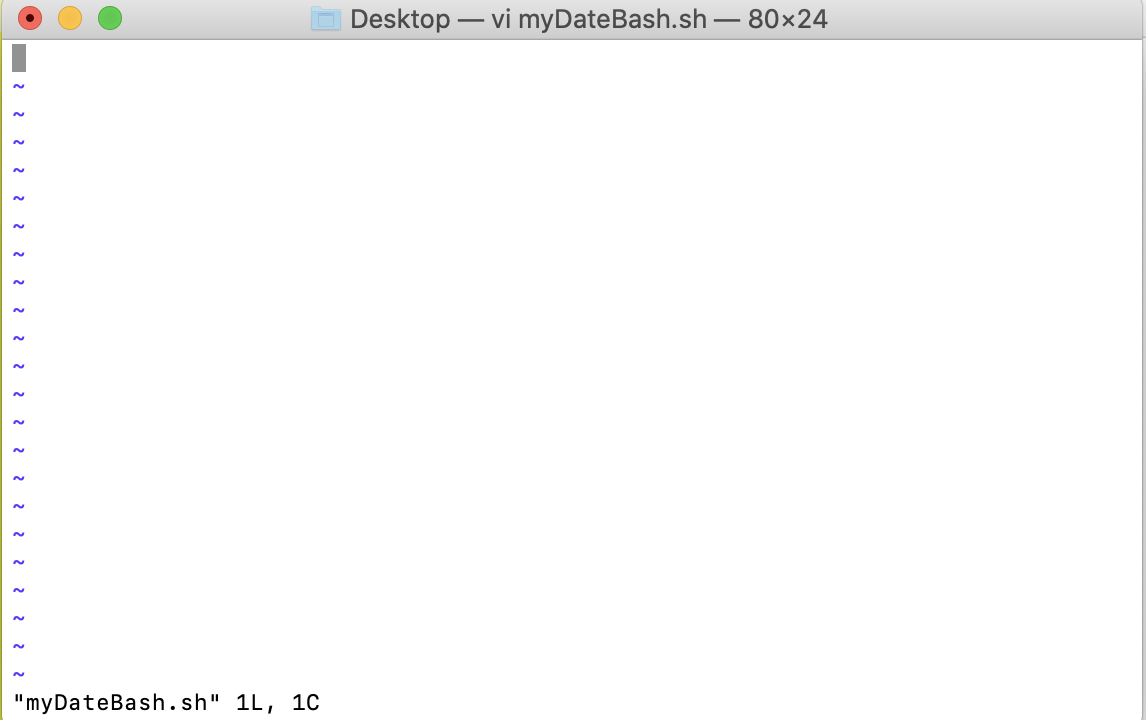
Then, type the letter i to enter "Insert Mode" and write in date >>myDateFile.txt. Then, click escape on your keyboard and then type ":wq". You should now be back to a normal Terminal setting.
Next, we need to set the file permisions. Paste "chmod +x myDateBash.sh" into the terminal.
Great! Now the setup is complete and we can run the bash script to write the current date and time to. myDateFile.txt like this:
./myDateBash.shLastly, to view the contents of the date text file:
cat myDateFile.txtFor more information on Bash and scripting, refer to https://linuxconfig.org/bash-scripting-tutorial.